Azure Citadel
  • Blogs

  • Azure Arc
    • Overview
    • Azure Arc-enabled Kubernetes
      • Prereqs
      • Background
      • Deploy Cluster
      • Connect to Arc
      • Enable GitOps
      • Deploy Application
      • Enable Azure AD
      • Enforce Policy
      • Enable Monitoring
      • Enable Azure Defender
      • Enable Data Services
      • Enable Application Delivery
    • Azure Arc-enabled Servers
      • Prereqs
      • Scenario
      • Hack Overview
      • Azure Landing Zone
      • Arc Pilot resource group
      • Azure Monitoring Agent
      • Additional policy assignments
      • Access your on prem VMs
      • Create onboarding scripts
      • Onboarding using scripts
      • Inventory
      • Monitoring
      • SSH
      • Windows Admin Center
      • Governance
      • Custom Script Extension
      • Key Vault Extension
      • Managed Identity
    • Useful Links
  • Azure CLI
    • Install
    • Get started
    • JMESPATH queries
    • Integrate with Bash
  • Azure Landing Zones
    • ALZ Accelerator
      • Prereqs
      • Elevate
      • Bootstrap
      • Demote
      • Components
    • Deploy an Azure Landing Zone
      • Create an initial ALZ config
      • Run through the CI/CD workflow
    • Example Library Configs
      • Azure Landing Zone library
      • Azure Landing Zone library with overrides
  • Azure Lighthouse
    • Minimal Lighthouse definition
    • Using service principals
    • Privileged Identity Management
  • Azure Policy
    • Azure Policy Basics
      • Policy Basics in the Azure Portal
      • Creating Policy via the CLI
      • Deploy If Not Exists
      • Management Groups and Initiatives
    • Creating Custom Policies
      • Customer scenario
      • Policy Aliases
      • Determine the logic
      • Create the custom policy
      • Define, assign and test
  • Marketplace
    • Introduction
      • Terminology
      • Offer Types
    • Partner Center
    • Offer Type
    • Publish a VM Offer HOL
      • Getting Started
      • Create VM Image
      • Test VM Image
      • VM Offer with SIG
      • VM Offer with SAS
      • Publish Offer
      • Other VM Resources
    • Publish a Solution Template HOL
      • Getting Started
      • Create ARM Template
      • Validate ARM Template
      • Create UI Definition
      • Package Assets
      • Publish Offer
    • Publish a Managed App HOL
      • Getting Started
      • Create ARM Template
      • Validate ARM Template
      • Create UI Definition
      • Package Assets
      • Publish Offer
    • Managed Apps with AKS HOL
    • Other Managed App Resources
    • SaaS Offer HOLs
    • SaaS Offer Video Series
      • Video 1 - SaaS Offer Overview
      • Video 2 - Purchasing a SaaS Offer
      • Video 3 - Purchasing a Private SaaS Plan
      • Video 4 - Publishing a SaaS Offer
      • Video 5 - Publishing a Private SaaS Plan
      • Video 6 - SaaS Offer Technical Overview
      • Video 7 - Azure AD Application Registrations
      • Video 8 - Using the SaaS Offer REST Fulfillment API
      • Video 9 - The SaaS Client Library for .NET
      • Video 10 - Building a Simple SaaS Landing Page in .NET
      • Video 11 - Building a Simple SaaS Publisher Portal in .NET
      • Video 12 - SaaS Webhook Overview
      • Video 13 - Implementing a Simple SaaS Webhook in .NET
      • Video 14 - Securing a Simple SaaS Webhook in .NET
      • Video 15 - SaaS Metered Billing Overview
      • Video 16 - The SaaS Metered Billing API with REST
  • Microsoft Fabric
    • Theory
    • Prereqs
    • Fabric Capacity
    • Set up a Remote State
    • Create a repo from a GitHub template
    • Configure an app reg for development
    • Initial Terraform workflow
    • Expanding your config
    • Configure a workload identity
    • GitHub Actions for Microsoft Fabric
    • GitLab pipeline for Microsoft Fabric
  • Packer & Ansible
    • Packer
    • Ansible
    • Dynamic Inventories
    • Playbooks & Roles
    • Custom Roles
    • Shared Image Gallery
  • Partner Admin Link
    • Understanding PAL
    • User IDs & PAL
    • Service principals & PAL
    • CI/CD pipelines & PAL
    • Creating a dedicated PAL service principal
    • Azure Lighthouse & PAL
    • PAL FAQ
  • REST API
    • REST API theory
    • Using az rest
  • Setup
  • Sovereign Landing Zones
    • ALZ Accelerator
      • Prereqs
      • Elevate
      • Bootstrap
      • Demote
      • Components
    • Deploy Sovereign Landing Zone
      • Create an initial SLZ config
      • Run through the CI/CD workflow
      • Sovereign Landing Zone
    • Example Library Configs
      • Sovereign Landing Zone
      • Sovereign Landing Zone library with overrides
  • Terraform
    • Fundamentals
      • Initialise
      • Format
      • Validate
      • Plan
      • Apply
      • Adding resources
      • Locals and outputs
      • Managing state
      • Importing resources
      • Destroy
    • Get set up for Terraform
      • Cloud Shell
      • macOS
      • Windows with PowerShell
      • Windows with Ubuntu in WSL2
    • Using AzAPI
      • Using the REST API
      • azapi_resource
      • Removing azapi_resource
      • azapi_update_resource
      • Data sources and outputs
      • Removing azapi_update_resource
  • Virtual Machines
    • Azure Bastion with native tools & AAD
    • Managed Identities

  • About
  • Archive
  1. Home
  2. Sovereign Landing Zones
  3. Deploy Sovereign Landing Zone
  4. Run through the CI/CD workflow
Run through the CI/CD workflow
Deploy Sovereign Landing Zone
Create an initial SLZ config
Run through the CI/CD workflow
Sovereign Landing Zone

Run through the CI/CD workflow

Make a new branch, commit and publish your changes, create a pull request, and then follow the approval workflow process.

Table of Contents

Placeholder commands. Extend with images / videos once tested. Also provide CLI commands in a tabs. Could also mode the alz v slz.

Overview

On this page you will:

  1. Create a git branch
  2. Commit and publish
  3. Create a pull request
  4. Review the changes
  5. Squash and merge

Create a branch

The main brach is protected to you must create a pull request on a feature branch. Note that the current branch is shown in Visual Studio Code’s status bar.

  1. Open the Command Palette (CTRL+SHIFT+P)
  2. Select Git: Create Branch…
  3. Set the branch name to initial

Commit

Now you will stage and commit your changes to the local Git repository.

  1. Go to Source Control in the primary side bar. (CTRL+SHIFT+G)

    The pane will display main.tf, terraform.tf,and variables.tf as Changes.

  2. Select variables.tf to view the changes.

  3. Select all three files and click on the + to Stage Changes.

    All three files will now show as Staged Changes.

  4. Type “Initial Commit” into the message box above the Commit button.

  5. Click the Commit button.

The commit show now show in the Graph pane. Note that it is local is now ahead of the commits on the origin’s main branch.

Publish

The Commit button will have changed to Publish Branch. Publishing the branch will push the commit from the local repo to the origin and this should trigger the CI pipeline.

  1. Click on the **Publish Branch" button

Note that the Initial Commit in the Graph now has the cloud symbol next to it.

Pull request

You will need to run the Pull Request to trigger the CI checks and prompt a review.

  1. Open the GitHub repo in a web page

    You can use gh repo view --web in the terminal if you have the GitHub CLI installed.

    Or right click on the commit in Source Control’s Graph to Open on GitHub.

  2. Click on Pull Requests.

    GitHub should show that the initial branch had recent pushes.

  3. Click on the Compare & pull request button

  4. Add a description.

    Initial Azure Landing Zones definition. Added:
    
    - alz provider, linked to the core Azure Landing Zones library
    - `alz` architecture name specified in the standard management group AVM module
    - plus the related management module
    
  5. Click on the green Create pull request button

  6. Wait a few seconds and you will see the CI workflow become triggered

    The checks will be embedded in the Pull Request conversation. Click on the running test name to go straight to the workflow run in the Actions menu. You can drill into the run for detailed log output.

If your local tests ran successfully then the checks in the Pull Request should also pass, and you should also see no conflicts with the base branch.

Squash and merge

You can then squash and merge the Pull Request. (If you have multiple commits in tour branch then squash will collapse them into a single commit to keep everything clean.)

  1. Click on the green Squash and merge button.

    • Feel free to update the system generated message and description
    • Click on the Confirm squash and merge button

The page will update and show the Pull request successfully merged and closed message.

Delete branch (optional)

You can also clean up the branch now that the Pull Request (PR) has been merged.

  1. Click on the Delete branch button in the Pull Request conversation.

    This deletes the origin/initial branch.

  2. Open the Integrated Terminal in Visual Studio Code

  3. Switch back to the main branch

    git switch main
    
  4. Pull the update

    git pull
    
  5. Delete the local initial branch

    git branch -d initial
    

Note that the Graph has been updated and the main branch should show it is synced with the remote (cloud) version.

If you click on the most recent commit then it will display the three files. Confirm by clicking on variables.tf to view the diff.

Review

The merge (pull) into the main branch will trigger the Continuous Deployment (CD) workflow. The first job in the workflow runs in the Plan environment, and generates the plan artifact. The environment rules will then force a review, pausing after the CD / Plan with Terraform job.

  1. View the plan

    • Click on the CD / Plan with Terraform job
    • Click on the Show the Plan for Review step

    The plan is large, so allow a little time for it to be displayed in full.

  2. Review the plan output and confirm the planned changes are as expected.

Approval

⚠️ This is the key control step. Your GitHub ID will be associated with the approval. Never approve a plan without a full and thorough review.

  1. Go back in the browser to return to the paused workflow

  2. Click on Review deployments

  3. Check the alz-mgmt-apply box

  4. Add a comment

    Looks good to me.
    
  5. Click on the green Approve and deploy

Deployment

The CD / Apply with Terraform step will start to run once the plan has been approved.

Click on the job name to view the log in the workflow. The core Azure Landing Zone will be deployed. Expect it to take up to ten minutes.
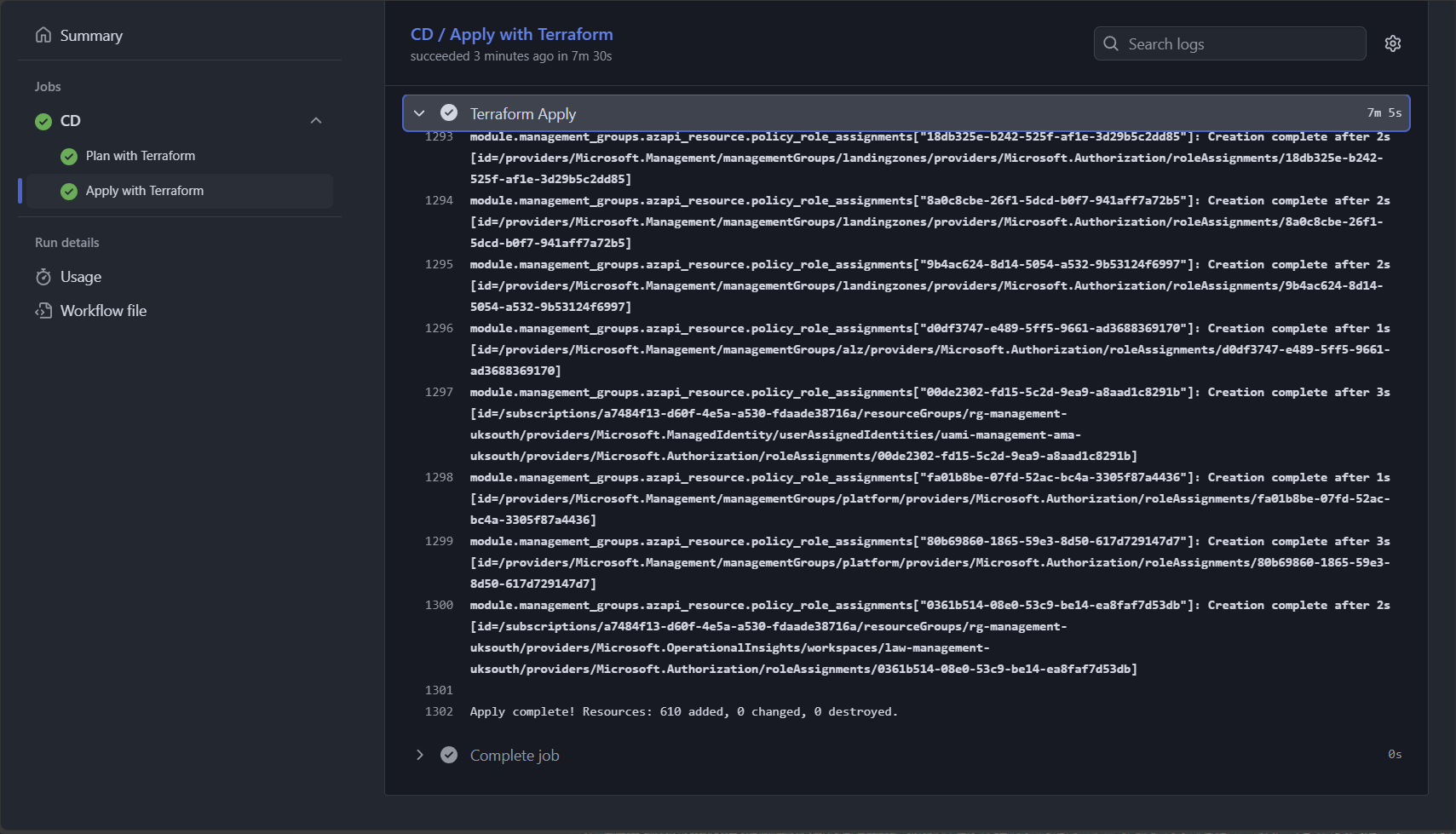
A successfully completed deployment step in GitHub Actions

References

  • https://aka.ms/alz
  • https://aka.ms/alz/accelerator/docs
  • https://github.com/Azure/alz-terraform-accelerator
Source: https://icy-island-077f0c303-135.westeurope.4.azurestaticapps.net/slz/deploy/cicd/
Published: 10 Oct 2025
Printed:
Create an initial SLZ config Run through the CI/CD workflow Sovereign Landing Zone